
Networking Learning Journal — Day 2: From Layers to Packet Hunting
My second-day notes on the OSI and TCP/IP models, encapsulation, and examining ICMP, DNS, TCP, and TLS packets with Wireshark.
Table of contents · 27 sections
Yesterday I started with “Is the internet up?” and reached switches, routers, IP, MAC, gateways, and packets. Today I am going deeper and looking inside the packet.
My goal is to answer this question properly:
Which layers does browser data cross, and why does Wireshark show Ethernet, IP, TCP, and TLS nested inside one another?
Saying “the packet is going somewhere” is not technically false, but it is not reassuring either. If a parcel tracker said only “it is going somewhere,” we would call customer service.
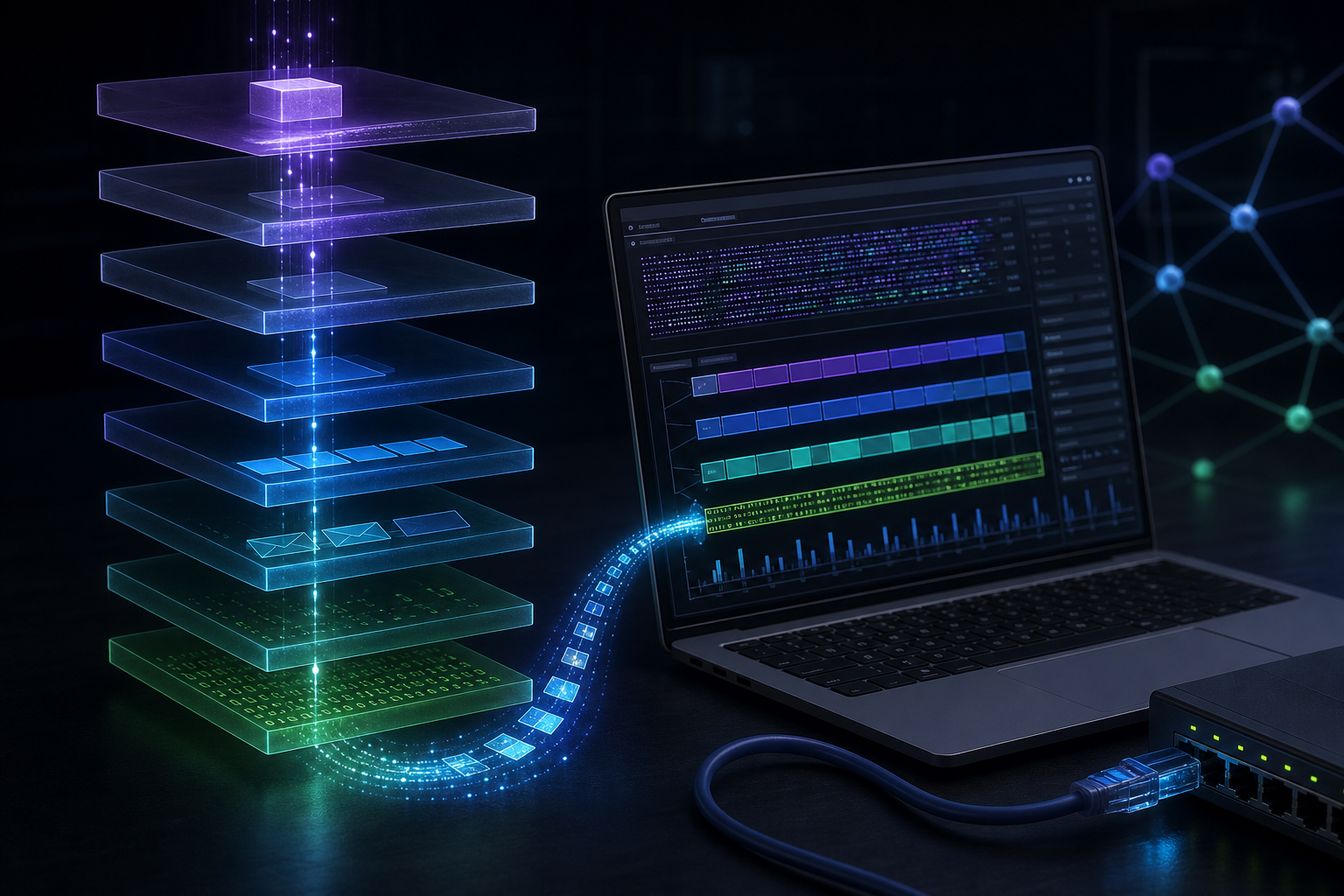
Why do layers exist?
No single giant protocol carries every responsibility when I open a website. The browser prepares the request, TCP manages transport, IP finds the destination, Ethernet or Wi-Fi handles local delivery, and the physical medium carries the bits.
Browser
   ↓
HTTP / TLS
   ↓
TCP
   ↓
IP
   ↓
Ethernet / Wi-Fi
   ↓
Electricity · light · radio waves
Layers let every part focus on its own job. More importantly, they tell me where to begin when something breaks:
- Is it the cable or signal?
- Local-network and MAC delivery?
- IP routing?
- The TCP connection?
- Or did the application decide not to work today?
Layered reasoning is the first step toward escaping the reflex of changing DNS for every problem.
The OSI model: Networking’s seven-story building
OSI stands for Open Systems Interconnection. It is not the exact protocol suite that runs the internet; it is a conceptual model for understanding, classifying, and troubleshooting communication.
From top to bottom, its seven layers are:
| Layer | Name | Primary job | Example | Data unit |
|---|---|---|---|---|
| 7 | Application | Application protocols | HTTP, DNS, SSH | Data |
| 6 | Presentation | Format, encoding, encryption | UTF-8, TLS, JPEG | Data |
| 5 | Session | Session management | Session control | Data |
| 4 | Transport | End-to-end transport and ports | TCP, UDP | Segment / Datagram |
| 3 | Network | Routing between networks | IP, router | Packet |
| 2 | Data Link | Delivery on the local network | Ethernet, MAC, switch | Frame |
| 1 | Physical | Physical transport of bits | Cable, fiber, Wi-Fi | Bits |
Mnemonics can teach the order, but knowing only the order is like memorizing a phone book without knowing anyone in it.
Layer 1 — Physical: Did you check the cable?
There is no HTTP, IP, or port here. There are electrical signals, light, radio waves, cables, connectors, and signal strength.
If the cable is broken, Wi-Fi is disabled, or the network adapter is down, the problem is here. Changing DNS in that situation is like setting a new router password for a house with no electricity.
Layer 2 — Data Link: Neighborhood delivery
This layer manages communication on the same local network. MAC addresses, Ethernet frames, switches, VLANs, and frame forwarding appear here.
A switch’s basic question is:
Which port contains the destination MAC address?The switch is like a neighborhood administrator who knows which resident belongs to which port—provided the MAC table is healthy.
Common problems include an incorrect VLAN, ARP issues, a disabled switch port, loops, and broadcast storms.
Layer 3 — Network: Packet navigation
Communication between different networks belongs here. IP is the central protocol, the router the central device, and the packet the data unit.
Source IP:      192.168.1.20
Destination IP: 1.1.1.1
A router examines the destination IP and routing table to choose the next path. With an incorrect IP, subnet mask, default gateway, or missing route, packet navigation says it cannot calculate a route.
Layer 4 — Transport: We found the building; which apartment?
TCP and UDP are the two famous protocols here. IP identifies the target device; a port identifies the application on that device.
22   → SSH
53   → DNS
80   → HTTP
443  → HTTPS
If IP is the building address, the port is the apartment number. In networking there is no concierge to ask; there is only the port.
TCP handles connections, sequence numbers, acknowledgements, flow control, and retransmission. UDP moves with less ceremony. I will leave their full confrontation for another day.
Layer 5 — Session: Not every “session” is the same session
This conceptual layer concerns establishing, maintaining, and terminating sessions. Modern protocols often distribute these responsibilities between application and transport layers.
A web application’s session cookie is not the same thing as the OSI Session Layer. Networking terminology occasionally leaves the same word in two places and watches us from a distance.
Layer 6 — Presentation: What form will the data take?
Encoding, decoding, encryption, decryption, compression, and data-format conversion are considered here. UTF-8, JPEG, JSON representation, and the role of TLS are examples.
Before blaming DNS for broken Turkish characters, checking encoding may be useful.
Layer 7 — Application: Closest to the user
Protocols such as HTTP, HTTPS, DNS, SMTP, IMAP, FTP, SSH, and DHCP live here.
An important distinction: Chrome is not a Layer 7 protocol. It is an application that uses HTTP/HTTPS. Somewhere, a networking instructor’s eye may twitch whenever somebody says “Chrome is Layer 7.”
HTTP 500 responses, incorrect API endpoints, authentication and authorization failures, and application vulnerabilities are considered at this level.
The TCP/IP model: Real life is more consolidated
OSI is a seven-layer teaching map. The TCP/IP model is closer to how internet protocols are used and is commonly described in four layers:
| OSI | TCP/IP |
|---|---|
| Application + Presentation + Session | Application |
| Transport | Transport |
| Network | Internet |
| Data Link + Physical | Network Access |
Some sources use five layers; that is not a networking civil war. The core idea remains the same: divide responsibilities into layers.
My short formula is:
Think with OSI; implement with TCP/IP.
Encapsulation: The nesting-doll phase of packets
As application data leaves the device, every layer adds control information. This is encapsulation.
Application Data
      ↓  TCP header
TCP Segment
      ↓  IP header
IP Packet
      ↓  Ethernet header + trailer
Ethernet Frame
      ↓
Bits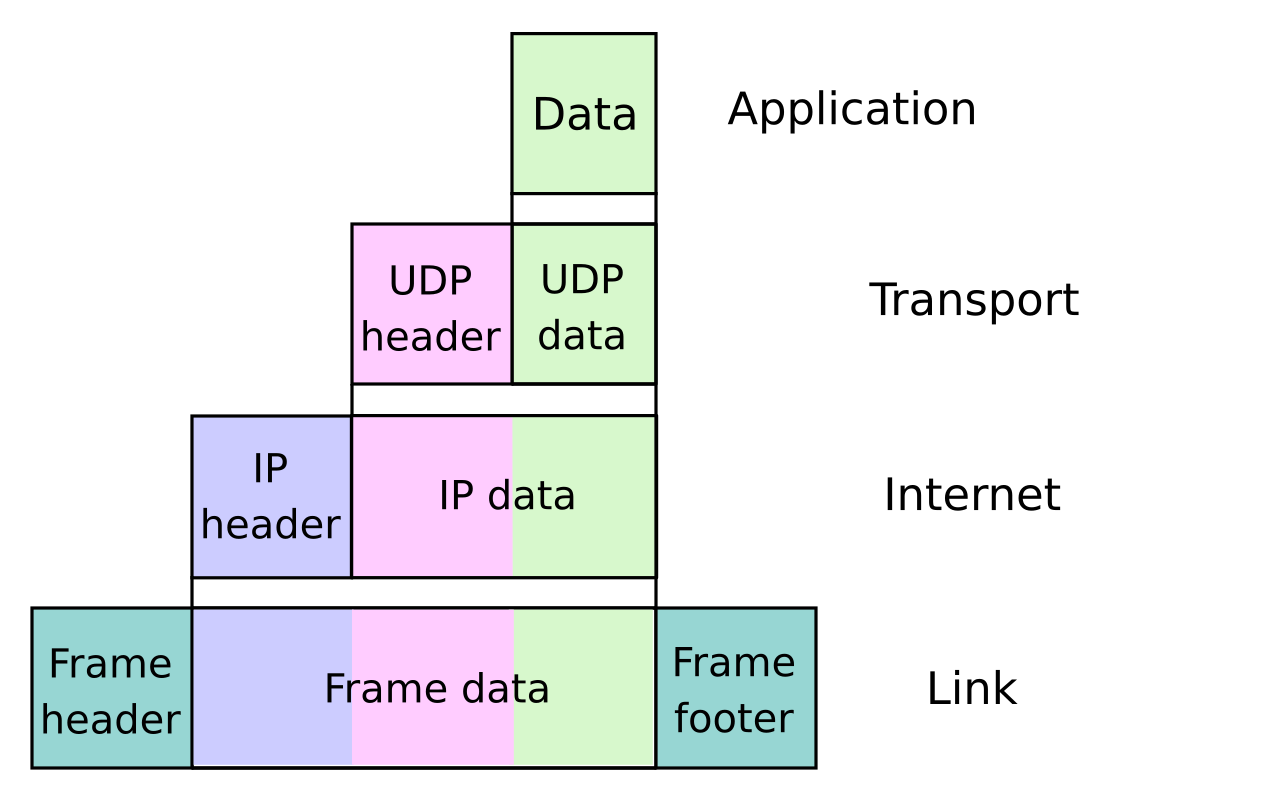
Headers and payloads are not the same
A header contains information a protocol adds to manage data. The payload is the content carried by that layer.
From TCP’s perspective, HTTP data may be the payload. From IP’s perspective, the whole TCP segment is payload. From Ethernet’s perspective, the IP packet is payload.
Ethernet Frame
├── Ethernet Header
└── IP Packet
    ├── IP Header
    └── TCP Segment
        ├── TCP Header
        └── Application Data
One layer’s packet is another layer’s cargo. Everyone carries somebody else’s load in networking.
Decapsulation: Opening the boxes at the destination
The process reverses at the destination:
Bits → Frame → Packet → Segment → Application DataEach layer checks its own header, removes the relevant part, and passes the remainder upward. This time the nesting doll is being opened.
The journey of an HTTPS request
Suppose I browse to https://example.com.
- The application layer creates the HTTP request.
- TLS encrypts the data.
- TCP adds a source port and destination port
443. - IP adds source and destination IP addresses.
- Ethernet adds the source MAC and gateway MAC for local delivery.
- The frame travels as bits over the physical medium.
The critical detail: my laptop does not use the remote server’s MAC address. If the server is on another network, the frame is first delivered to the default gateway.
Source MAC:      Laptop
Destination MAC: Gateway
A router may rebuild the Layer 2 frame at every hop. MAC addresses can therefore change along the path, while IP addresses represent the endpoints across networks.
Wireshark: Making sense of the Matrix
Wireshark is a network protocol analyzer. It captures packets and lets me inspect them layer by layer:
- Source and destination MAC addresses
- Source and destination IP addresses
- Ports
- TCP flags
- DNS queries
- ICMP packets
- TLS handshakes
- Timing and retransmission information
When hundreds of packets first stream past, the natural reaction is:
What kind of Matrix is this?No panic. Display filters exist for exactly this reason.
Installation
macOS:
brew install --cask wiresharkDebian/Kali-based Linux:
sudo apt update
sudo apt install wireshark
On Linux, I may need to add the user to the capture group and sign in again:
sudo usermod -aG wireshark $USERCapture filters and display filters
A capture filter decides before packets are recorded. A display filter selects what I see among packets already captured.
# Capture filter
host 1.1.1.1

# Display filter
icmp
Display filters are safer at the beginning. If I write a capture filter incorrectly, important packets are never recorded and I may stare at the screen saying, “There is no traffic.” The traffic exists; the filter is gaslighting me.
Packet hunt 1: Seeing ping through ICMP
After selecting the active interface and starting capture:
ping -c 4 1.1.1.1Display filter:
icmpI should see Echo Request and Echo Reply packets. Opening one reveals:
Ethernet II
Internet Protocol Version 4
Internet Control Message Protocol
Fields to inspect:
- Ethernet: source/destination MAC and EtherType
- IPv4: source/destination IP, TTL, and protocol
- ICMP: type, code, identifier, and sequence number
Echo Request is generally Type 8 and Echo Reply Type 0. “I sent a ping and got a reply” is now a real request/reply pair on screen.
Packet hunt 2: Looking behind DNS magic
nslookup example.comor:
dig example.comFilter:
dnsOn the query side, I look for Name: example.com and Type: A; on the response side, the resolved IP address. The browser does not know a domain name by instinct. It asks DNS first.
Packet hunt 3: Capturing the TCP handshake
curl -I https://example.comFilter:
tcp.port == 443I am looking for:
Client → SYN     → Server
Client ← SYN-ACK ← Server
Client → ACK     → Server
This is the TCP three-way handshake. Today I am only locating it in real packets; I will leave the rest of TCP’s family drama for later.
Packet hunt 4: TLS is present, so why is there no content?
Filter:
tlsDepending on connection state and TLS version, I may see Client Hello, Server Hello, Certificate, and Encrypted Application Data.
Wireshark sees the traffic but does not show HTTPS content in plaintext. This does not mean Wireshark is broken; it means TLS showed up for work.
My first useful filters
icmp
dns
tcp
tls
ip.addr == 1.1.1.1
tcp.port == 443
tcp.flags.syn == 1
The http filter produces meaningful results only for unencrypted HTTP traffic. Expecting plaintext GET requests for every https:// connection is like trying to read a sealed letter from the outside.
Layered reasoning from a security perspective
| Layer | Example threats |
|---|---|
| Layer 1 | Physical access, cable cutting, RF jamming |
| Layer 2 | ARP spoofing, MAC flooding, VLAN hopping |
| Layer 3 | IP spoofing, route manipulation, ICMP abuse |
| Layer 4 | SYN flood, port scanning, TCP reset, UDP flood |
| Layer 7 | SQL injection, XSS, SSRF, authentication bypass |
Real attacks do not have to sit neatly in one box. Layers are still a useful map for understanding where an attack begins and how far its impact spreads.
Five common misconceptions
- “OSI is the exact protocol running the internet.” No; it is a conceptual model.
- “Chrome is a Layer 7 protocol.” Chrome is an application; HTTP is a protocol.
- “A packet and a frame are the same.” A packet is a Layer 3 structure; a frame is Layer 2.
- “A MAC address travels unchanged across the internet.” MAC addresses can change at each local hop.
- “Wireshark displays all HTTPS content in plaintext.” Preventing that is precisely what TLS is for.
Testing myself
Questions I should answer without my notes:
- Why was the OSI model created?
- What does the Physical Layer carry?
- Which layer relates to switches and MAC addresses?
- Which information does a router use for decisions?
- Why are an IP and a port different?
- Why is Chrome not a Layer 7 protocol?
- Where do OSI’s top three layers combine in TCP/IP?
- Which headers are added during encapsulation?
- Why is payload a relative concept?
- Why do I not use the remote server’s MAC address directly?
- What is the difference between capture and display filters?
- What are the ICMP Echo Request and Reply type values?
- Which fields do I seek in a DNS query?
- Which three steps form the TCP three-way handshake?
- Why might I see TLS packets but not read the application data?
The scenarios are simple too:
- Ethernet cable unplugged → Layer 1
- Incorrect VLAN → Layer 2
- Incorrect IP/default gateway → Layer 3
- TCP connection to 443 cannot be established → Start at Layer 4
- HTTP 500 → Layer 7
The picture in my head at the end of the day
Yesterday I said, “the packet is going.” Today the sentence is longer, but at least it stands up technically:
Application data is encapsulated in a TCP segment, the segment in an IP packet, and the packet in an Ethernet frame; the frame is carried as bits over the physical medium.
At the destination, the same boxes open in reverse order. Wireshark shows the different layers of that journey.
Instead of saying “What kind of Matrix is this?” when Wireshark opens, I can now say:
All right, this is an Ethernet frame.
It contains IPv4.
And that contains TCP.
Progress partly means being able to name the complexity on the screen.
Next, I will move to IPv4, subnet masks, CIDR, network addresses, broadcast addresses, and host ranges. I have learned where packets travel; next I will calculate the boundaries of their neighborhoods.
Image credits
- Cover illustration: Created locally for this article.
- Encapsulation diagram: Cburnett and Kbrose — Wikimedia Commons, CC BY-SA 3.0.

$ leave_reaction --one
What did this article leave with you?
Choose one reaction. You can change your choice later.
This choice is stored only in this browser. No personal data or reaction information is sent to a server.