
Networking Learning Journal — Day 1: Is the Internet Up?
My first-day notes, from the difference between a network and the internet to IP, MAC, switches, routers, gateways, encapsulation, and ping tests.
Table of contents · 27 sections
Today is the first day of my networking learning journey.
My goal is clear: I do not want to be someone who only runs tools. When a tool gives me output, I want to understand why the output looks that way.
Typing nmap, ping, curl, or traceroute into a terminal is easy. Explaining what is really happening behind the scenes is harder:
- Where is the packet going?
- What exactly do a switch and a router do?
- Why are IP and MAC addresses separate concepts?
- Why does
127.0.0.1always mean “me”? - Why can the internet fail while the Wi-Fi indicator is full?
- Why does an open port not automatically mean a compromised system?
Today I am building the foundation for those questions. I will start at the beginner level, but not treat it like a children’s explanation: simple, technical, and as detailed as necessary.
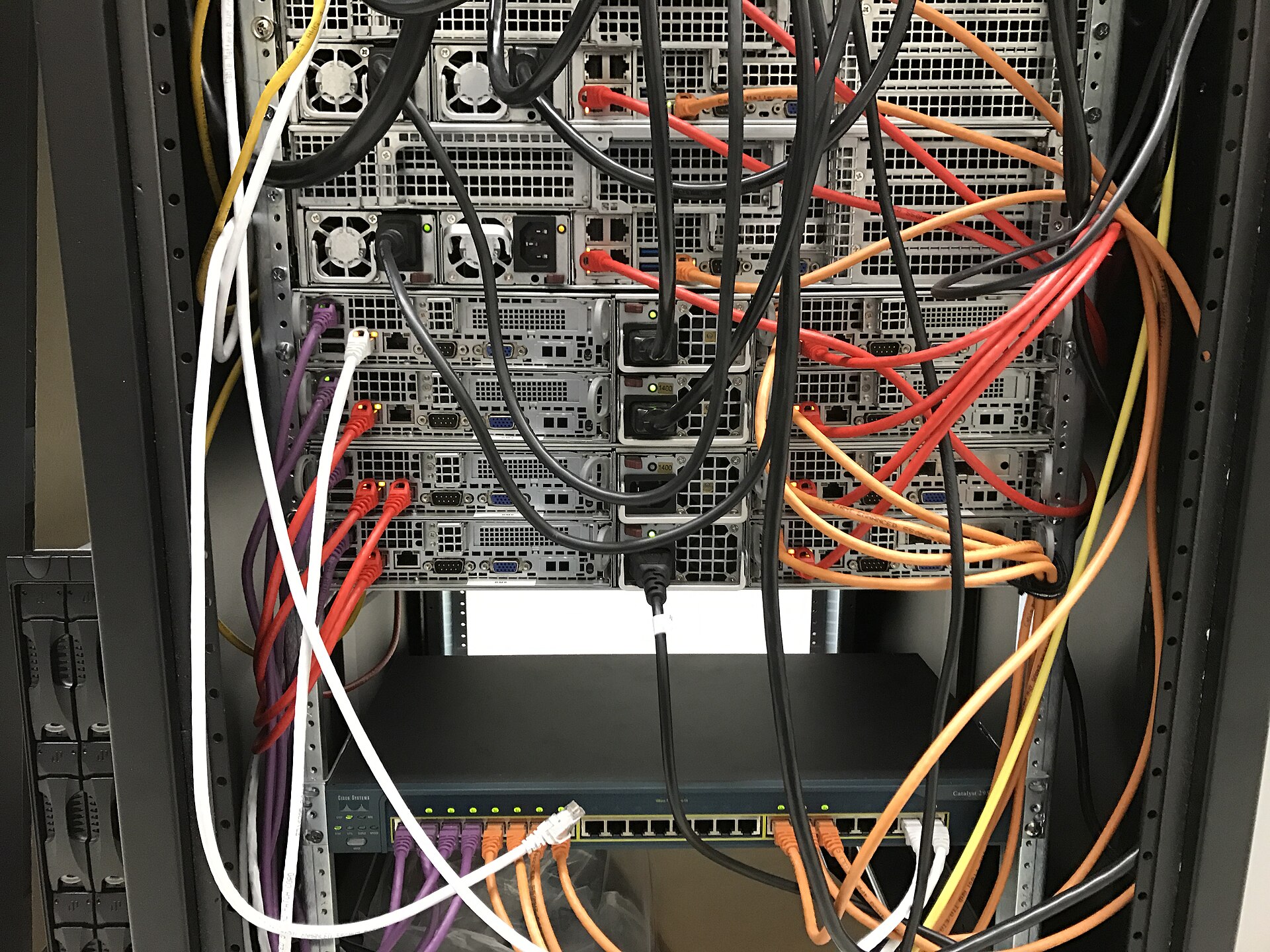
A network does not necessarily mean the internet
A network is a structure that enables two or more devices to exchange data.
At its simplest, two computers communicating with each other form a network. A phone, printer, Raspberry Pi, security camera, virtual machine, router, or IoT device can also be part of it.
If my home computer sends a document to a printer on the same Wi-Fi network, network communication is taking place. The internet does not need to work for that. As long as both devices are on the same local network, they can communicate.
This is my first important distinction:
A network does not always mean the internet.
The internet is not one enormous computer or one network owned by a single company. It is a network of networks created by interconnecting millions of independent networks.
When I connect to a website, my computer does not teleport to it. Traffic first leaves the local network, reaches the router, enters the service provider’s network, travels through other routers, and eventually reaches the destination data center.
Packets are handed from one place to another a little like parcels. The difference is that the delivery rules are defined by protocols rather than by a courier saying nobody was home.
Hosts, clients, and servers
A device connected to and capable of communicating over a network is a host. A laptop, phone, printer, and Raspberry Pi can each be a host.
A host normally has a network interface, an IP address, and network configuration. The word “host,” however, does not say which role the device currently performs. For that, I need the client–server relationship.
A client requests a service. A browser, mobile app, SSH client, or email application is an example.
A server provides that service. It may be a web, DNS, file, or email server.
The basic flow is:
Client  ---- Request ---->  Server
Client  <--- Response ----  Server
When I visit a website, the browser acts as the client. It may send an HTTP request like this:
GET / HTTP/1.1
Host: example.com
The server responds:
HTTP/1.1 200 OK
Content-Type: text/html
I can compare this to a customer and cashier:
Customer: May I have a coffee?
Cashier:  Certainly. Here you are.
The technical equivalent is a request and a response.
A server does not have to be an enormous machine in a data center. If I run the following command on my computer, that machine becomes a simple web server on port 8000:
python3 -m http.server 8000The same device can be a client in one connection and a server in another. Its role is determined by what it does in that communication, not by its price or physical size.
Network interfaces: Which door does traffic use?
A network interface is the physical or virtual connection through which a device joins a network.
Examples include:
- A Wi-Fi adapter
- An Ethernet adapter
- A VPN tunnel
- A loopback interface
- A virtual-machine or container adapter
On macOS, I may see names such as en0, lo0, and utun0; on Linux, names such as eth0, wlan0, lo, and tun0.
A computer can have several network interfaces at once. I can be connected to the internet through Wi-Fi, use a VPN, run a Docker network, and access a local service through loopback at the same time.
That is why “a computer has an IP address” is often an oversimplification. A more accurate statement is:
Network interfaces have IP addresses.
Why are IP and MAC two different addresses?
An IP address is a logical address on a network. It identifies where a packet came from and where it is going.
Source IP:      192.168.1.20
Destination IP: 1.1.1.1
Comparing an IP address to a postal address is helpful at first, but the analogy has limits. My IP can change with the network I join: 192.168.1.20 at home, 10.20.30.55 at university, and 172.20.10.2 on a phone hotspot. The device is the same; its logical location has changed.
A MAC address is a local-network address associated with a network interface:
A4:5E:60:12:34:56I remember the basic distinction like this:
IP  → Which network and host should I reach?
MAC → Which interface on this local network should receive the frame?
IP is used for routing decisions between networks. A MAC address is particularly important for Ethernet communication on the same local network.
It is also wrong to treat the MAC as “the device’s permanent worldwide identity.” MAC addresses can be spoofed, operating systems use randomization for privacy, virtual interfaces have their own MAC addresses, and one device may contain several network adapters.
Switches and routers do not do the same job
A switch connects devices on the same local network. It learns the source MAC addresses of incoming Ethernet frames and builds a table mapping MAC addresses to physical ports.
Its rough reasoning is:
“I saw this MAC address on port 3. I should send the frame there.”
A hub is much less selective and generally repeats incoming data to every port. In the networking neighborhood, the hub is the gossip who tells everyone; the switch is the courier who knows the address.
A router forwards packets between different networks. Its central question is:
“Which network contains this destination IP, and where should I send the packet next?”
The router uses information such as the routing table, destination IP, and next hop.
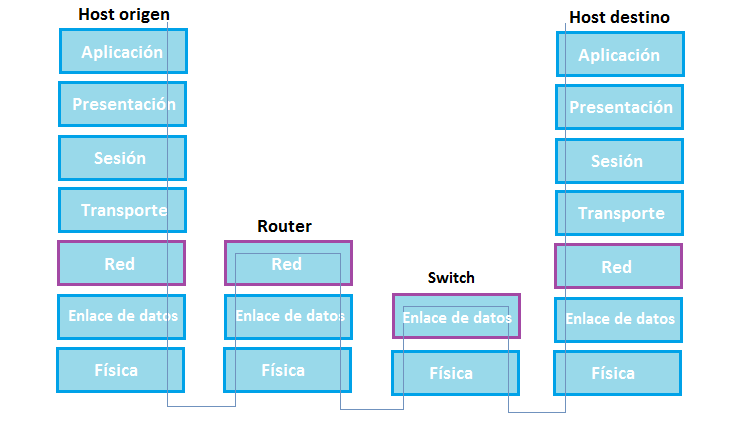
For now, my short formula is:
Switch → Communication inside the same local network
Router → Communication between different networks
Real devices can combine several jobs in one box. What I casually call the “modem” at home often performs several roles: modem, router, switch, wireless access point, DHCP server, NAT device, and firewall.
One box, five jobs.
Default gateway: The exit from the local network
When my computer determines that a destination IP is outside its local network, it sends the packet to the default gateway.
Laptop IP:       192.168.1.20
Default gateway: 192.168.1.1
Destination:     1.1.1.1
The computer’s reasoning is:
“This destination is not on my local network. I do not know how to reach it directly, so I will hand the packet to the router.”
Without a gateway, a device can usually communicate with systems on its local network but cannot reach other networks.
I also need to distinguish modems from access points:
- A modem converts the service provider’s connection into a usable signal.
- A router forwards traffic between networks.
- An access point lets wireless devices join the local network.
- A switch connects wired devices on the same local network.
Consumer devices combine these roles in one enclosure, so everyday speech often calls the entire box a modem.
LAN, WAN, and the internet
A LAN is a local network in a limited area such as a home, office, or laboratory.
A WAN connects networks across larger geographic areas. Private links between company offices in different cities or service-provider infrastructure are examples.
The internet is the global structure formed by many independent networks connected through shared protocols.
LAN      → Local area
WAN      → Wide geographic area
Internet → The collection of interconnected networks
Data, segments, packets, and frames
These four words are often used interchangeably, but they describe data structures at different layers.
As application data leaves a device, each layer adds its own information:
Application data
      ↓
TCP segment
      ↓
IP packet
      ↓
Ethernet frame
      ↓
Cable or Wi-Fi
This process is encapsulation. At the destination, headers are removed in reverse order; this is decapsulation.
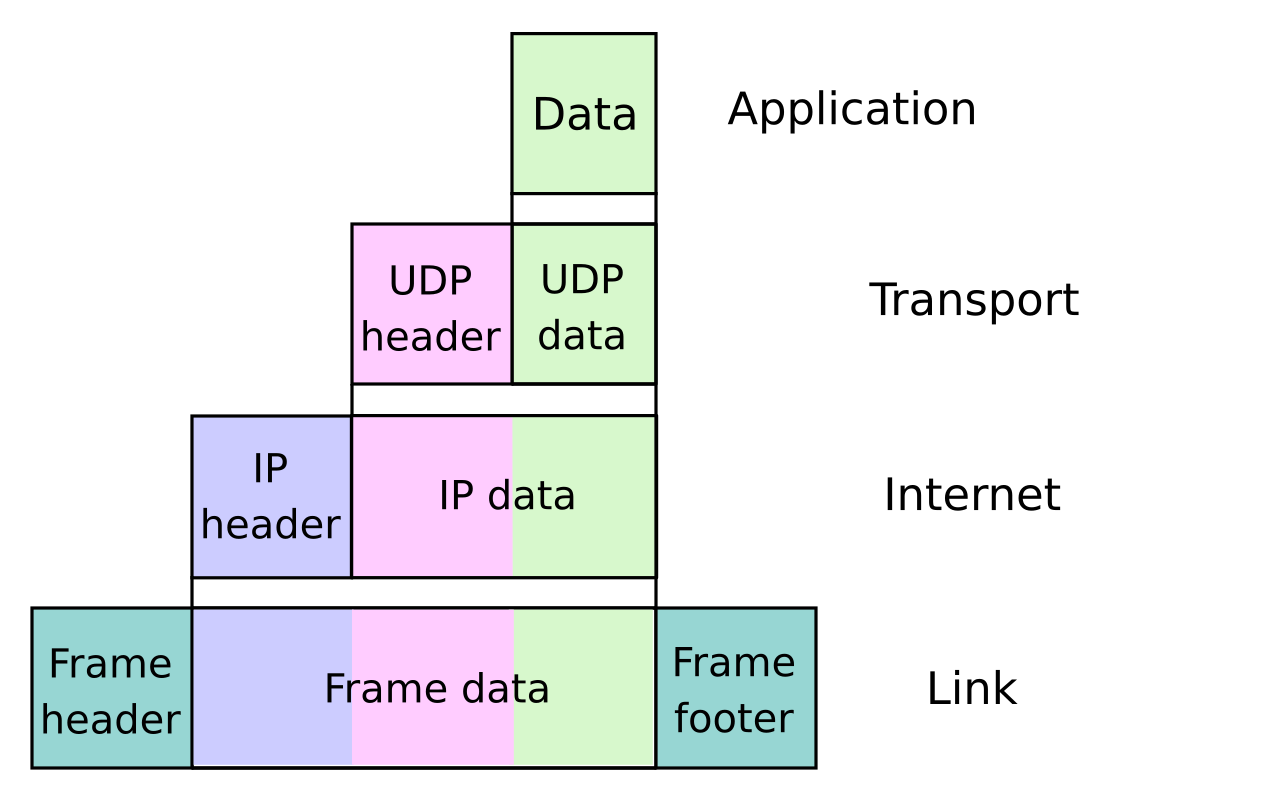
I can picture it like shipping: a document goes into an envelope, the envelope into a parcel, and the parcel into a vehicle. Every layer has its own responsibility and addressing information.
The important point is:
Segment, packet, and frame are not arbitrary synonyms.
Loopback: Sending a packet to myself
Loopback is a virtual network interface that lets a device communicate with itself. The best-known IPv4 loopback address is 127.0.0.1; its hostname equivalent is localhost.
Traffic sent there does not reach the router or the internet. The computer talks internally.
python3 -m http.server 8000I can reach this server from the same device at:
http://127.0.0.1:8000For every device, 127.0.0.1 refers to itself. Opening that address on another computer connects to that computer, not mine.
Loopback is networking’s “I sent myself a message and answered it myself” feature.
What does ping prove—and what does it not prove?
Ping is a basic tool for testing network reachability. It normally sends an ICMP Echo Request and waits for an ICMP Echo Reply.
ping -c 4 1.1.1.1The output shows sent and received packet counts, packet loss, and round-trip time.
A failed ping does not prove the target is down. A firewall may block ICMP, an intermediate router may not respond, or the target may deliberately disable echo replies while continuing to allow HTTPS.
Therefore:
Ping is a signal, not a final verdict.
Breaking “Is the internet up?” into four checks
Today’s most useful practice was checking a network problem layer by layer.
1. Loopback test
ping -c 4 127.0.0.1This gives me information about the device’s own TCP/IP stack and loopback interface.
2. Gateway test
ping -c 4 192.168.1.1The gateway address is not the same on every network. This test checks the local connection and reachability of the router.
3. Public IP test
ping -c 4 1.1.1.1Without depending on DNS, this helps me determine whether IP-level connectivity toward the internet exists.
4. Domain-name test
ping -c 4 google.comIf I can reach the IP address but not the hostname, DNS becomes a strong suspect.
My check order is:
127.0.0.1 → Gateway → Public IP → Domain nameInstead of merely saying “the internet is down,” this sequence starts telling me where the problem might be.
Four short failure scenarios
Loopback succeeds, gateway fails
I inspect Wi-Fi connectivity, the selected interface, gateway configuration, the local network, and router reachability.
Gateway succeeds, 1.1.1.1 fails
The router’s upstream connection, service provider, routing, or firewall becomes suspect.
1.1.1.1 succeeds, domain name fails
I have external IP-level connectivity but cannot resolve the hostname. DNS is the first strong suspect.
Ping fails, website opens
This is entirely possible. ICMP can be blocked while HTTP/HTTPS is allowed. I cannot conclude “no ping means no system.”
Day 1 laboratory
These commands are for observation only. Local IP, MAC, VPN, and organizational-network information may be private, so I need to be careful when sharing output.
macOS
# Network interfaces
ifconfig

# IPv4 address of en0
ipconfig getifaddr en0

# Default route and gateway
route -n get default

# Alternative routing-table view
netstat -rn

# Layered connectivity tests
ping -c 4 127.0.0.1
ping -c 4 <gateway-ip>
ping -c 4 1.1.1.1
ping -c 4 google.com
Linux
# Network interfaces and addresses
ip addr

# Routing table and default gateway
ip route

# Listening and open sockets
ss -tulpn

# Layered connectivity tests
ping -c 4 127.0.0.1
ping -c 4 <gateway-ip>
ping -c 4 1.1.1.1
ping -c 4 google.com
ss -tulpn is not the main subject today, but it is a useful observation point for seeing which service listens on which port. An open port only shows that a service accepts connections. It does not automatically indicate a vulnerability or compromised system.
A short glossary for the day
| Term | Meaning |
|---|---|
| Network | Connected devices that exchange data |
| Host | A network-connected system |
| Client | The side requesting a service |
| Server | The side providing a service |
| Request | A client’s message asking for an operation or resource |
| Response | A server’s answer to a request |
| Network interface | A physical or virtual network connection |
| Source IP | The sending IP address |
| Destination IP | The receiving IP address |
| Router | A device that forwards packets between networks |
| Switch | A device that connects hosts on a local network |
| Default gateway | The next hop used for destinations outside the local network |
| Packet | Network-layer protocol data unit |
| Frame | Data-link-layer protocol data unit |
| Access point | A device that joins wireless clients to a network |
| Encapsulation | Adding layer-specific headers around data |
| Decapsulation | Removing those headers at the destination |
| Packet loss | Packets that fail to reach their destination |
Testing myself
If I can answer these without looking at my notes, the first day’s foundation is taking shape:
- Are a network and the internet the same thing?
- When is a host a client, and when is it a server?
- Why are IP and MAC addresses separate concepts?
- What is the fundamental difference between a switch and a router?
- Why is a default gateway necessary?
- What does
127.0.0.1identify? - Are segments, packets, and frames the same thing?
- If
1.1.1.1works but a hostname does not, which system should I investigate first? - Does a failed ping prove the target is down?
- Why are Wi-Fi connectivity and internet access not the same thing?
The picture in my head at the end of the day
When I type a web address into a browser, I no longer think only, “the site opens.”
The client prepares a request. Before the data leaves the network interface, it is encapsulated layer by layer. If the destination is not local, the frame is first delivered to the default gateway’s MAC address on the local network. The router examines the IP packet and chooses the next path. The packet crosses networks until it reaches the server. The server prepares a response, and the process repeats in the opposite direction.
There are still many boxes to open—DNS, ARP, the TCP connection, TLS, and routing among them. The concepts are no longer isolated facts to memorize; they are parts of one journey.
Today’s summary:
- A client requests a service; a server provides it.
- A switch connects devices on the same local network.
- A router forwards packets between different networks.
- IP is a logical address; MAC is used for local-network delivery.
- The default gateway is the exit toward other networks.
- Segments, packets, and frames are not the same thing.
127.0.0.1is the device itself.- A failed ping alone does not prove a target is down.
At the end of day one, I am still not the world’s best networking specialist.
But instead of saying, “The Wi-Fi signal is full; why is there no internet?” I can ask better questions:
- Does loopback work?
- Is the gateway reachable?
- Can I reach a public IP address?
- Does DNS resolution work?
Real progress begins here: not with memorizing more commands, but with asking better questions.
Next, I will move to the OSI and TCP/IP models, layered reasoning, and my first packet analysis with Wireshark.
The rule is simple:
Run the command. See the output. Most importantly, explain why it looks that way.
Image credits
- Network infrastructure photo: Cloud899 — Wikimedia Commons, CC BY-SA 4.0.
- Switch and router diagram: Xcrespo11 — Wikimedia Commons, CC BY-SA 3.0.
- Encapsulation diagram: Cburnett and Kbrose — Wikimedia Commons, CC BY-SA 3.0.
$ leave_reaction --one
What did this article leave with you?
Choose one reaction. You can change your choice later.
This choice is stored only in this browser. No personal data or reaction information is sent to a server.
Related Articles


Networking Learning Journal — Day 3: Which Neighborhood Owns This IP?
My third-day notes on IPv4, binary, subnet masks, and CIDR by calculating network addresses, broadcasts, and usable host ranges.
Read article